Is Copilot Safe for Enterprise Use & What Security Teams Need to Know

GenAI Security
Blog

Key Takeaways

Copilot is only as safe as your Microsoft 365 setup: It follows existing permissions and compliance rules, so any oversharing, misconfigured groups, or legacy access will be reflected directly in Copilot’s output.
Excessive access is the top risk: Broad SharePoint/Teams permissions, shared links, weak identity controls, or token theft can let Copilot legitimately surface sensitive information to users who shouldn’t see it.
Strong identity and governance controls are required: Enforce MFA, tighten Conditional Access, clean up groups and shared links, and limit high-impact admin roles before broad deployment.
Safe use depends heavily on user behavior: Train employees on what not to put into prompts, how to recognize unintended data retrieval, and when to escalate questionable output.
Continuous monitoring is essential: Track Copilot activity in audit logs, watch for risky prompts, review third-party app consents, and monitor token/app behavior to catch issues early.

Is Copilot Safe? Copilot Security Overview

Copilot for Microsoft 365 is an enterprise-ready AI assistant that operates within Microsoft 365’s existing security, compliance, and permission frameworks. It uses Microsoft Graph to access organizational data, respecting the same access controls already in place, and cannot override or expand user permissions.

It also adheres to the platform’s encryption, auditing, data residency, and compliance boundaries. While these foundations are strong, the safety of Copilot in practice depends heavily on the state of your Microsoft 365 environment. 

Copilot inherits whatever permissions, data exposure, and configuration issues already exist. If users have excessive access or if sensitive data is poorly labeled or widely shared, Copilot can legitimately surface that information.

What Makes Copilot Safe

  • Uses Microsoft Graph to respect existing permissions
  • Does not train models on customer data
  • Follows Microsoft 365 compliance and audit controls
  • Supports enterprise identity tools like MFA and Conditional Access

Microsoft’s protections form a strong baseline, but they aren’t enough on their own. 

To use Copilot safely, organizations need their own governance layers and controls to prevent oversharing, keep sensitive data out of prompts, limit how Copilot interacts with high-risk content, and ensure that only appropriately authorized users can trigger AI-driven actions across Microsoft 365.

Key Security Risks with Copilot

Even though Copilot follows Microsoft 365’s permission and compliance model, it can still expose sensitive information or execute unintended actions when underlying data, access structures, or user behavior are not well-governed. The table below summarizes the primary security risks enterprises should account for when deploying Copilot at scale:

Risk Category Description
Excessive Permissions and Data Exposure Copilot can surface any file, message, or site a user already has access to. Over-permissive SharePoint, Teams, or OneDrive access can cause sensitive content to appear in responses.
Prompt Injection and Manipulated Outputs Malicious or poorly structured prompts may cause Copilot to reveal more information than intended, provide misleading responses, or execute actions that users did not expect.
Token Theft and Authentication Exploits Compromised authentication tokens or weak identity protections can give attackers unauthorized access to Copilot capabilities tied to a user’s Microsoft 365 permissions.
Risks from Misconfigured Sharing Shared links, legacy SharePoint permissions, ungoverned Teams channels, and broadly accessible document libraries can lead Copilot to retrieve sensitive information unintentionally.
CVEs and other known vulnerabilities CVEs and other known vulnerabilities related to Microsoft 365 components (e.g., plugins, connectors, and Microsoft Graph integrations) may indirectly affect Copilot because it relies on these services to retrieve, interpret, and act on enterprise data. These weaknesses in the underlying infrastructure can influence how safely Copilot accesses or processes information.
Unapproved Custom Copilot Agents or Extensions Employees may create or use their own Copilot Studio agents, custom prompts, or connectors without IT oversight. These unapproved extensions can introduce unknown data-handling behaviors, undocumented workflows, and inconsistent security controls, potentially exposing sensitive data, increasing permission risks, or causing compliance violations outside the organization’s governed Microsoft 365 environment.


Data Protection and Platform Controls for Copilot Safety

Microsoft Copilot inherits the security, compliance, and data-protection architecture of Microsoft 365. However, Copilot’s safety depends not only on Microsoft’s built-in protections but also on how well an organization configures identity, permissions, and data governance across its Microsoft 365 environment. The following platform-level controls form the foundation for securing Copilot use in these environments.

Access Controls and Permission Boundaries

Copilot uses Microsoft Graph (and other connected service APIs) to access organizational data. Access controls enforced by those services directly determine what Copilot can retrieve, and therefore what it can generate from that data. Here are some priority actions to strengthen access security:

  • Least-Privilege Permissions: Users should only have access to the SharePoint sites, Teams channels, and OneDrive libraries required for their role.
  • Group-Based Access: Ensure Microsoft 365 Groups, security groups, and Teams memberships do not include unnecessary users or legacy accounts.
  • Review Shared Links and Public Folders: Broad or legacy link sharing can expand Copilot’s visibility into sensitive locations.
  • Limit High-Impact Roles: Admin roles, Power Platform roles, and users able to create connectors or agents should be tightly controlled.

With these controls in place, organizations can ensure Copilot’s visibility aligns with intentional, well-governed access patterns.

Encryption and Data Residency Options

Copilot follows the same encryption standards and data handling policies as Microsoft 365. In other words:

  • Data in transit and at rest is encrypted using Microsoft’s standard enterprise-grade controls.
  • Data residency follows the tenant’s existing Microsoft 365 configuration, meaning Copilot does not move data outside previously established geographic or compliance boundaries.
  • No training on customer data as Copilot does not use customer prompts or corporate content to train the underlying models, supporting confidentiality requirements.
  • Compliance alignment since Copilot operates within a tenant’s existing compliance posture, including retention labels, DLP policies, and sensitivity labels.

Logging and Auditing Capabilities

Copilot activity is captured within Microsoft 365’s built‑in audit and compliance tools. Important logging capabilities include:

  • Unified Audit Log entries for Copilot usage events and associated data access.
  • Integration with Microsoft Purview, supporting auditing, oversight, and forensic analysis of AI-related activity.
  • Conditional Access and identity logs that help identify unauthorized or anomalous usage patterns.
  • Support for exporting logs to SIEM platforms, enabling correlation with broader enterprise security events.

Common Misconceptions About Copilot Safety

Organizations exploring Microsoft Copilot often bring assumptions influenced by other consumer AI tools, legacy automation platforms, or incomplete documentation. These misconceptions can create unnecessary concerns. 

At the same time, they can cause teams to overlook the real operational safeguards Copilot depends on. Clarifying what Copilot can and cannot do is essential for setting realistic expectations and applying the right governance controls.

  • Misunderstood Data Access Capabilities: Many users assume Copilot can “see everything” in Microsoft 365. In reality, Copilot cannot bypass permissions or access content a user is not already authorized to view. All data retrieval occurs through Microsoft Graph, which enforces existing SharePoint, Teams, Exchange, and OneDrive access boundaries. So, when Copilot surfaces unexpected information, the cause is typically over-permissive sharing and not Copilot expanding visibility.
  • What Copilot Does and Does Not Store: Some believe Copilot stores prompts, responses, or internal documents independently, but Copilot does not create new data repositories or maintain long-term memory. All interactions are processed and logged within the tenant’s existing Microsoft 365 storage, audit, and retention framework. Copilot retains only what the underlying application already keeps, such as Teams chat history or Outlook content.
  • Myths About Training Data Use: A common misconception is that Copilot trains on organizational data the way public AI models learn from user input. In reality, customer data, including prompts and corporate content, is not used to train the underlying foundation models. Model improvements occur at the platform level and do not incorporate or retain information from individual Microsoft 365 tenants, preventing unintended exposure or influence on model behavior.
  • Overestimating What Access Controls Protect Against: Some teams assume that Microsoft’s built-in access controls will prevent Copilot from exposing sensitive information. But access controls only enforce current permissions. If files or sites are already overshared, Copilot will accurately reflect that visibility. In other words, strong platform controls won’t prevent inappropriate access if the underlying data is already exposed due to legacy sharing or misconfigured/excessively permissive groups.

Secure Deployment and Setup Practices for Copilot Safety

A safe Copilot deployment entails a deliberate approach to identity, permissions, governance, and user behavior. The following practices outline how organizations can introduce Copilot in a controlled, well-governed, and risk-aware manner.

Applying Least-Privilege for Copilot Access

A secure Copilot rollout starts with least-privilege access. Copilot will surface any data a user is already allowed to view, which makes excessive permissions one of the most common sources of unintended exposure. 

Before broad deployment, organizations should review Microsoft 365 Groups, Teams memberships, SharePoint permissions, and shared link settings to eliminate outdated or overly broad access. 

Reducing unnecessary visibility not only limits the potential for oversharing but also ensures Copilot reflects the organization’s intended access boundaries rather than historical misconfigurations.

Controlled Rollouts and Pilot Programs

Introducing Copilot gradually allows security teams to understand how users interact with it and identify exposure patterns early. A controlled rollout typically begins with a small group of trained users who represent key business units, giving IT and security teams visibility into how Copilot behaves in real-world workflows. 

This approach enables organizations to observe how Copilot surfaces data, identify unexpected permission paths, validate governance settings, and fine-tune access controls before expanding deployment across the enterprise. A measured rollout also helps businesses adjust internal policies and user guidance based on actual usage rather than assumptions.

Conditional Access and Identity Policies

Identity security plays a central role in Copilot safety because Copilot operates under the identity of the signed-in user. Conditional Access controls such as requiring MFA, blocking legacy authentication, enforcing compliant devices, and restricting access based on risk level, ensure that only legitimate users and trusted endpoints can invoke Copilot. 

When combined with strong session controls, sign-in risk policies, and monitored authentication logs, these measures significantly reduce the likelihood of unauthorized access, token theft, or compromised accounts leveraging Copilot to reach sensitive information.

User Training and Safe-Use Guidelines

Even with strong technical controls, user behavior remains one of the biggest variables in Copilot safety. Employees need clear guidance on what types of data should not be entered into prompts, how to structure requests safely, and how to recognize when Copilot may be pulling information from unintended sources.

User training should focus on preventing oversharing, understanding permission boundaries, and knowing when to escalate questionable output. By giving users practical, scenario-based training rather than generic warnings, organizations can significantly reduce the chances that Copilot will be misused or misinterpret a prompt in a way that exposes sensitive data.

Best Practices for Copilot Safety

Even with strong platform-level protections, safe Copilot usage ultimately relies on day-to-day governance practices that reduce unnecessary exposure and reinforce secure behavior. Some of these practices include:

  • Classifying and Labeling Sensitive Data: Clear data classification and consistent use of sensitivity labels ensure Copilot understands which content requires heightened protection. Proper labeling helps govern how information is accessed, processed, and shared, reducing the risk of sensitive files being exposed unexpectedly.
  • Enforcing Role-Based Access: Role-based access control helps maintain minimal privileges by aligning user permissions with job responsibilities. When roles are well-governed, Copilot’s output stays within intended visibility boundaries and reduces exposure caused by excessive access.
  • Reviewing Third-Party App Consents: Unmonitored third-party integrations can expand the data Copilot interacts with or introduce additional (but unneeded) access privileges. Regularly reviewing and tightening app consents helps prevent unnecessary data sharing and limits the potential for unintended access paths.
  • Monitoring Token and App Activity: Access tokens used by apps and services can be exploited if compromised. Monitoring token usage and app-level authentication events helps detect unauthorized activity early, which reduces the risk of attackers leveraging Copilot through compromised credentials.
  • Tracking Copilot Activity Across M365: Since Copilot logs actions through Microsoft 365’s audit system, tracking these actions provides insight into which data users are accessing through Copilot. Visibility into prompt patterns, retrieval behavior, and system interactions helps teams proactively identify anomalies.
  • Detecting Unsafe Prompts or Behaviors: Users may unintentionally submit prompts that reveal sensitive information or trigger unintended actions. Monitoring for risky prompts, such as those involving regulated data or broad content requests, helps prevent oversharing before it becomes an incident.
  • Alerts and Incident Response Actions: Alerts tied to Copilot activity allow security teams to respond quickly when interactions exhibit unusual behavior. Integrating audit logs with SIEM or SOAR systems strengthens incident response and ensures that Copilot-related risks are addressed as part of standard security operations.

Copilot vs. Alternatives: How Do Safety Features Compare?

Below is a high-level comparison of four enterprise AI assistants: Microsoft 365 Copilot, Google Gemini Enterprise, ChatGPT Enterprise and Amazon Q Business, focusing on how they implement safety, governance and access in enterprise settings.

Category Microsoft 365 Copilot Google Gemini Enterprise ChatGPT Enterprise Amazon Q Business
Data Access Model Accesses organizational data through Microsoft Graph, strictly enforcing existing Microsoft 365 permissions and tenant boundaries. Retrieves data based on Google Workspace permissions and connectors. Inherits Workspace sharing settings. Uses OpenAI models. Enterprise data access often requires custom integrations rather than native suite permissions. Indexes enterprise content across cloud data stores and applications using connectors and retrieval-based access.
Enterprise Controls & Governance Built-in compliance, audit logging, sensitivity labels, retention rules, and tenant-level governance. Workspace DLP, IRM, admin controls, and no-training-on-customer-data commitments. Provides enterprise admin controls and audit logs but relies heavily on customer-implemented governance. Provides role-based permissions, trust rules, topic filtering, and detailed admin controls for agent behavior.
Integration Model Deeply integrated with Microsoft 365 apps (Teams, SharePoint, Outlook), workflows, and Microsoft Graph APIs. Integrated across Google Workspace apps (Docs, Gmail, Sheets) and supported third-party connectors. Works via web UI or API. Not tied to a specific productivity suite, requiring custom integrations. Integrates with AWS services, cloud apps, databases, and custom enterprise data sources.
Primary Risk Surface Data exposure stemming from over-permissive sharing, misconfigured M365 permissions, and unsafe prompts. Broad Workspace sharing settings, external collaboration, and prompt-driven oversharing. Risk of data leaving the tenant environment if integrations are not tightly controlled; prompt injection concerns. Cross-source data access risks, complex indexing behavior, and risks from loosely governed user-created apps.

How Opsin Strengthens Copilot Security

Even with strong Microsoft 365 protections and well-configured governance, many security gaps that affect Copilot come from issues hidden in an organization’s M365 environment. Opsin provides the visibility and continuous oversight needed to close these gaps, helping organizations operationalize AI safety at scale across these environments.

  • Mapping Excessive Permissions and Identity Risks: Opsin identifies where users, groups, and service accounts have unnecessary or inherited access to files, sites, and collaboration spaces. By mapping identity risks across SharePoint, OneDrive, and Teams, it helps organizations eliminate hidden access pathways that Copilot could legitimately use to surface sensitive information.
  • Monitoring Sensitive Data Exposure: Opsin continuously scans cloud file systems (e.g., SharePoint, OneDrive, Google Workspace) to detect oversharing, misconfigured permissions, and inadvertent exposure of regulated or confidential data. This real-time insight ensures Copilot cannot access or generate from content that was never meant to be broadly available.
  • Detecting Conditions That Enable Unsafe Prompts: Opsin reduces prompt-related risks at the source by ensuring Copilot only has access to appropriately governed data. Instead of relying solely on Microsoft’s guardrails, Opsin continuously monitors for oversharing, misconfigured permissions, and exposure of sensitive information across SharePoint, OneDrive, and Teams. By closing these gaps, Opsin helps ensure that even risky or malformed prompts cannot surface data that was never meant to be accessible in the first place.
  • Real-Time Detection on Risky AI Activity: Opsin alerts security teams when Copilot or other GenAI tools access sensitive data in unusual ways, exhibit suspicious behavior, or interact with content that should be tightly restricted. This ensures early intervention before a data exposure becomes an incident.

Conclusion

Copilot can be deployed safely in the enterprise, but only when organizations recognize that its security is inseparable from the quality of their underlying Microsoft 365 governance. Microsoft provides strong identity, permission, and compliance foundations, yet Copilot will faithfully reflect whatever access patterns, oversharing, or legacy exposure already exist. 

To use Copilot confidently at scale, organizations must pair Microsoft’s built-in controls with continuous visibility into their data estate and user access. Strengthening least-privilege access, enforcing consistent data protection practices, monitoring AI activity, and identifying hidden exposure points all help ensure Copilot operates within intentional boundaries. 

By uncovering oversharing, pinpointing misconfigurations, and reducing the conditions that enable risky AI behavior, Opsin provides the governance and oversight needed to keep Copilot safe, predictable, and aligned with enterprise security expectations.

Table of Contents

LinkedIn Bio >

FAQ

Can a Copilot leak sensitive information through prompts?

Copilot will only surface data the user already has access to, but unsafe prompts can unintentionally retrieve sensitive content.

  • Train users to avoid broad prompts like “summarize all HR documents.”
  • Use sensitivity labels to restrict how regulated or confidential data can be used by Copilot.
  • Monitor prompt patterns for signs of oversharing (e.g., repeated attempts to retrieve wide data scopes).

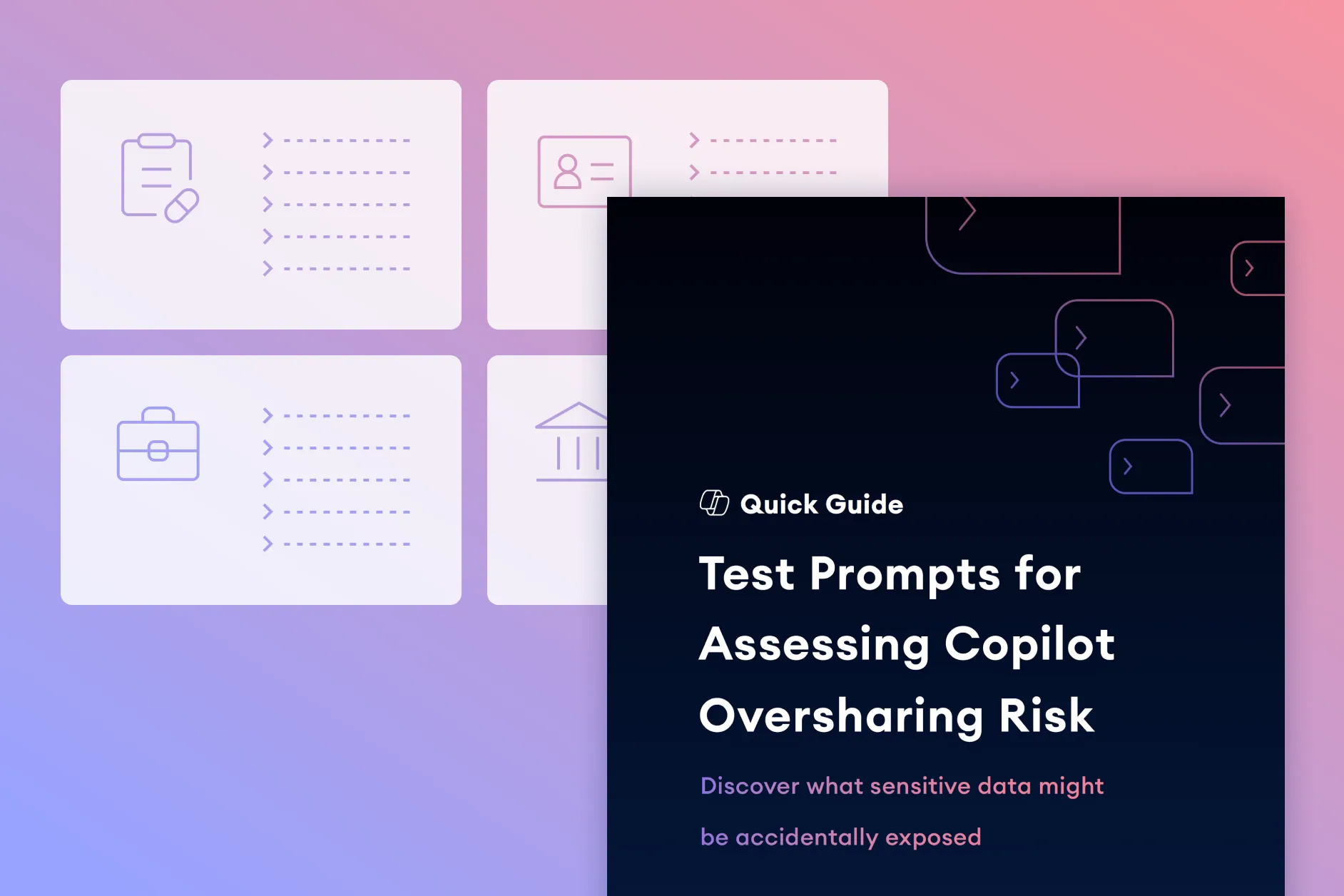
Opsin provides test prompts for assessing Copilot oversharing risk, helping teams validate exposure paths before rollout.

How should enterprises detect prompt injection or AI-manipulated Copilot behavior?

Use layered detection combining identity telemetry, content governance, and anomaly monitoring.

  • Flag prompts that cross data-boundary expectations (large-scope requests, HR/finance crossover, etc.).
  • Correlate retrieval anomalies with identity signals like atypical device posture or session risk.
  • Harden downstream systems (SharePoint/Teams/Graph APIs) against overbroad queries.

Opsin’s research on prompt-injection risk in Microsoft Copilot outlines emerging attack patterns for enterprise environments.

How do CVEs or Microsoft 365 vulnerabilities affect Copilot’s security posture?

Vulnerabilities in connectors, plugins, or underlying Microsoft 365 services can influence what Copilot can access or act upon.

  • Treat M365 CVEs as Copilot-relevant if they affect Graph permissions, token security, or content retrieval.
  • Continuously review app consents and disable stale connectors.
  • Enforce Conditional Access rules that limit how compromised tokens can interact with Copilot.

Opsin’s AI security blind spots article explores how hidden infrastructure weaknesses cascade into AI-driven access paths.

How does Opsin help prevent Copilot from surfacing sensitive data caused by oversharing?

Opsin continuously maps excessive permissions and highlights exposure points before Copilot can retrieve them.

  • Identify inherited and group-based access that users don’t need.
  • Detect overshared SharePoint/Teams libraries aligned to regulated data.
  • Monitor shared-link sprawl that silently widens Copilot’s visibility.

See how Encore Technologies used Opsin to secure their Copilot deployment and eliminate hidden access pathways.

Can Opsin detect unsafe or risky Copilot activity in real time?

Yes, Opsin correlates AI actions, data retrieval, and identity signals to flag high-risk Copilot behaviors.

  • Alert on anomalous Copilot interactions with sensitive or restricted libraries.
  • Detect risky prompts that may indicate overbroad retrieval or exfiltration attempts.
  • Feed activity into SIEM/SOAR for automated investigation and rapid response.

For deeper readiness, Opsin’s AI Readiness Assessment helps organizations verify whether their environment is prepared for safe Copilot adoption.

About the Author
Oz Wasserman
Oz Wasserman is the Founder of Opsin, with over 15 years of cybersecurity experience focused on security engineering, data security, governance, and product development. He has held key roles at Abnormal Security, FireEye, and Reco.AI, and has a strong background in security engineering from his military service.
LinkedIn Bio >

Is Copilot Safe for Enterprise Use & What Security Teams Need to Know

Is Copilot Safe? Copilot Security Overview

Copilot for Microsoft 365 is an enterprise-ready AI assistant that operates within Microsoft 365’s existing security, compliance, and permission frameworks. It uses Microsoft Graph to access organizational data, respecting the same access controls already in place, and cannot override or expand user permissions.

It also adheres to the platform’s encryption, auditing, data residency, and compliance boundaries. While these foundations are strong, the safety of Copilot in practice depends heavily on the state of your Microsoft 365 environment. 

Copilot inherits whatever permissions, data exposure, and configuration issues already exist. If users have excessive access or if sensitive data is poorly labeled or widely shared, Copilot can legitimately surface that information.

What Makes Copilot Safe

  • Uses Microsoft Graph to respect existing permissions
  • Does not train models on customer data
  • Follows Microsoft 365 compliance and audit controls
  • Supports enterprise identity tools like MFA and Conditional Access

Microsoft’s protections form a strong baseline, but they aren’t enough on their own. 

To use Copilot safely, organizations need their own governance layers and controls to prevent oversharing, keep sensitive data out of prompts, limit how Copilot interacts with high-risk content, and ensure that only appropriately authorized users can trigger AI-driven actions across Microsoft 365.

Key Security Risks with Copilot

Even though Copilot follows Microsoft 365’s permission and compliance model, it can still expose sensitive information or execute unintended actions when underlying data, access structures, or user behavior are not well-governed. The table below summarizes the primary security risks enterprises should account for when deploying Copilot at scale:

Risk Category Description
Excessive Permissions and Data Exposure Copilot can surface any file, message, or site a user already has access to. Over-permissive SharePoint, Teams, or OneDrive access can cause sensitive content to appear in responses.
Prompt Injection and Manipulated Outputs Malicious or poorly structured prompts may cause Copilot to reveal more information than intended, provide misleading responses, or execute actions that users did not expect.
Token Theft and Authentication Exploits Compromised authentication tokens or weak identity protections can give attackers unauthorized access to Copilot capabilities tied to a user’s Microsoft 365 permissions.
Risks from Misconfigured Sharing Shared links, legacy SharePoint permissions, ungoverned Teams channels, and broadly accessible document libraries can lead Copilot to retrieve sensitive information unintentionally.
CVEs and other known vulnerabilities CVEs and other known vulnerabilities related to Microsoft 365 components (e.g., plugins, connectors, and Microsoft Graph integrations) may indirectly affect Copilot because it relies on these services to retrieve, interpret, and act on enterprise data. These weaknesses in the underlying infrastructure can influence how safely Copilot accesses or processes information.
Unapproved Custom Copilot Agents or Extensions Employees may create or use their own Copilot Studio agents, custom prompts, or connectors without IT oversight. These unapproved extensions can introduce unknown data-handling behaviors, undocumented workflows, and inconsistent security controls, potentially exposing sensitive data, increasing permission risks, or causing compliance violations outside the organization’s governed Microsoft 365 environment.


Data Protection and Platform Controls for Copilot Safety

Microsoft Copilot inherits the security, compliance, and data-protection architecture of Microsoft 365. However, Copilot’s safety depends not only on Microsoft’s built-in protections but also on how well an organization configures identity, permissions, and data governance across its Microsoft 365 environment. The following platform-level controls form the foundation for securing Copilot use in these environments.

Access Controls and Permission Boundaries

Copilot uses Microsoft Graph (and other connected service APIs) to access organizational data. Access controls enforced by those services directly determine what Copilot can retrieve, and therefore what it can generate from that data. Here are some priority actions to strengthen access security:

  • Least-Privilege Permissions: Users should only have access to the SharePoint sites, Teams channels, and OneDrive libraries required for their role.
  • Group-Based Access: Ensure Microsoft 365 Groups, security groups, and Teams memberships do not include unnecessary users or legacy accounts.
  • Review Shared Links and Public Folders: Broad or legacy link sharing can expand Copilot’s visibility into sensitive locations.
  • Limit High-Impact Roles: Admin roles, Power Platform roles, and users able to create connectors or agents should be tightly controlled.

With these controls in place, organizations can ensure Copilot’s visibility aligns with intentional, well-governed access patterns.

Encryption and Data Residency Options

Copilot follows the same encryption standards and data handling policies as Microsoft 365. In other words:

  • Data in transit and at rest is encrypted using Microsoft’s standard enterprise-grade controls.
  • Data residency follows the tenant’s existing Microsoft 365 configuration, meaning Copilot does not move data outside previously established geographic or compliance boundaries.
  • No training on customer data as Copilot does not use customer prompts or corporate content to train the underlying models, supporting confidentiality requirements.
  • Compliance alignment since Copilot operates within a tenant’s existing compliance posture, including retention labels, DLP policies, and sensitivity labels.

Logging and Auditing Capabilities

Copilot activity is captured within Microsoft 365’s built‑in audit and compliance tools. Important logging capabilities include:

  • Unified Audit Log entries for Copilot usage events and associated data access.
  • Integration with Microsoft Purview, supporting auditing, oversight, and forensic analysis of AI-related activity.
  • Conditional Access and identity logs that help identify unauthorized or anomalous usage patterns.
  • Support for exporting logs to SIEM platforms, enabling correlation with broader enterprise security events.

Common Misconceptions About Copilot Safety

Organizations exploring Microsoft Copilot often bring assumptions influenced by other consumer AI tools, legacy automation platforms, or incomplete documentation. These misconceptions can create unnecessary concerns. 

At the same time, they can cause teams to overlook the real operational safeguards Copilot depends on. Clarifying what Copilot can and cannot do is essential for setting realistic expectations and applying the right governance controls.

  • Misunderstood Data Access Capabilities: Many users assume Copilot can “see everything” in Microsoft 365. In reality, Copilot cannot bypass permissions or access content a user is not already authorized to view. All data retrieval occurs through Microsoft Graph, which enforces existing SharePoint, Teams, Exchange, and OneDrive access boundaries. So, when Copilot surfaces unexpected information, the cause is typically over-permissive sharing and not Copilot expanding visibility.
  • What Copilot Does and Does Not Store: Some believe Copilot stores prompts, responses, or internal documents independently, but Copilot does not create new data repositories or maintain long-term memory. All interactions are processed and logged within the tenant’s existing Microsoft 365 storage, audit, and retention framework. Copilot retains only what the underlying application already keeps, such as Teams chat history or Outlook content.
  • Myths About Training Data Use: A common misconception is that Copilot trains on organizational data the way public AI models learn from user input. In reality, customer data, including prompts and corporate content, is not used to train the underlying foundation models. Model improvements occur at the platform level and do not incorporate or retain information from individual Microsoft 365 tenants, preventing unintended exposure or influence on model behavior.
  • Overestimating What Access Controls Protect Against: Some teams assume that Microsoft’s built-in access controls will prevent Copilot from exposing sensitive information. But access controls only enforce current permissions. If files or sites are already overshared, Copilot will accurately reflect that visibility. In other words, strong platform controls won’t prevent inappropriate access if the underlying data is already exposed due to legacy sharing or misconfigured/excessively permissive groups.

Secure Deployment and Setup Practices for Copilot Safety

A safe Copilot deployment entails a deliberate approach to identity, permissions, governance, and user behavior. The following practices outline how organizations can introduce Copilot in a controlled, well-governed, and risk-aware manner.

Applying Least-Privilege for Copilot Access

A secure Copilot rollout starts with least-privilege access. Copilot will surface any data a user is already allowed to view, which makes excessive permissions one of the most common sources of unintended exposure. 

Before broad deployment, organizations should review Microsoft 365 Groups, Teams memberships, SharePoint permissions, and shared link settings to eliminate outdated or overly broad access. 

Reducing unnecessary visibility not only limits the potential for oversharing but also ensures Copilot reflects the organization’s intended access boundaries rather than historical misconfigurations.

Controlled Rollouts and Pilot Programs

Introducing Copilot gradually allows security teams to understand how users interact with it and identify exposure patterns early. A controlled rollout typically begins with a small group of trained users who represent key business units, giving IT and security teams visibility into how Copilot behaves in real-world workflows. 

This approach enables organizations to observe how Copilot surfaces data, identify unexpected permission paths, validate governance settings, and fine-tune access controls before expanding deployment across the enterprise. A measured rollout also helps businesses adjust internal policies and user guidance based on actual usage rather than assumptions.

Conditional Access and Identity Policies

Identity security plays a central role in Copilot safety because Copilot operates under the identity of the signed-in user. Conditional Access controls such as requiring MFA, blocking legacy authentication, enforcing compliant devices, and restricting access based on risk level, ensure that only legitimate users and trusted endpoints can invoke Copilot. 

When combined with strong session controls, sign-in risk policies, and monitored authentication logs, these measures significantly reduce the likelihood of unauthorized access, token theft, or compromised accounts leveraging Copilot to reach sensitive information.

User Training and Safe-Use Guidelines

Even with strong technical controls, user behavior remains one of the biggest variables in Copilot safety. Employees need clear guidance on what types of data should not be entered into prompts, how to structure requests safely, and how to recognize when Copilot may be pulling information from unintended sources.

User training should focus on preventing oversharing, understanding permission boundaries, and knowing when to escalate questionable output. By giving users practical, scenario-based training rather than generic warnings, organizations can significantly reduce the chances that Copilot will be misused or misinterpret a prompt in a way that exposes sensitive data.

Best Practices for Copilot Safety

Even with strong platform-level protections, safe Copilot usage ultimately relies on day-to-day governance practices that reduce unnecessary exposure and reinforce secure behavior. Some of these practices include:

  • Classifying and Labeling Sensitive Data: Clear data classification and consistent use of sensitivity labels ensure Copilot understands which content requires heightened protection. Proper labeling helps govern how information is accessed, processed, and shared, reducing the risk of sensitive files being exposed unexpectedly.
  • Enforcing Role-Based Access: Role-based access control helps maintain minimal privileges by aligning user permissions with job responsibilities. When roles are well-governed, Copilot’s output stays within intended visibility boundaries and reduces exposure caused by excessive access.
  • Reviewing Third-Party App Consents: Unmonitored third-party integrations can expand the data Copilot interacts with or introduce additional (but unneeded) access privileges. Regularly reviewing and tightening app consents helps prevent unnecessary data sharing and limits the potential for unintended access paths.
  • Monitoring Token and App Activity: Access tokens used by apps and services can be exploited if compromised. Monitoring token usage and app-level authentication events helps detect unauthorized activity early, which reduces the risk of attackers leveraging Copilot through compromised credentials.
  • Tracking Copilot Activity Across M365: Since Copilot logs actions through Microsoft 365’s audit system, tracking these actions provides insight into which data users are accessing through Copilot. Visibility into prompt patterns, retrieval behavior, and system interactions helps teams proactively identify anomalies.
  • Detecting Unsafe Prompts or Behaviors: Users may unintentionally submit prompts that reveal sensitive information or trigger unintended actions. Monitoring for risky prompts, such as those involving regulated data or broad content requests, helps prevent oversharing before it becomes an incident.
  • Alerts and Incident Response Actions: Alerts tied to Copilot activity allow security teams to respond quickly when interactions exhibit unusual behavior. Integrating audit logs with SIEM or SOAR systems strengthens incident response and ensures that Copilot-related risks are addressed as part of standard security operations.

Copilot vs. Alternatives: How Do Safety Features Compare?

Below is a high-level comparison of four enterprise AI assistants: Microsoft 365 Copilot, Google Gemini Enterprise, ChatGPT Enterprise and Amazon Q Business, focusing on how they implement safety, governance and access in enterprise settings.

Category Microsoft 365 Copilot Google Gemini Enterprise ChatGPT Enterprise Amazon Q Business
Data Access Model Accesses organizational data through Microsoft Graph, strictly enforcing existing Microsoft 365 permissions and tenant boundaries. Retrieves data based on Google Workspace permissions and connectors. Inherits Workspace sharing settings. Uses OpenAI models. Enterprise data access often requires custom integrations rather than native suite permissions. Indexes enterprise content across cloud data stores and applications using connectors and retrieval-based access.
Enterprise Controls & Governance Built-in compliance, audit logging, sensitivity labels, retention rules, and tenant-level governance. Workspace DLP, IRM, admin controls, and no-training-on-customer-data commitments. Provides enterprise admin controls and audit logs but relies heavily on customer-implemented governance. Provides role-based permissions, trust rules, topic filtering, and detailed admin controls for agent behavior.
Integration Model Deeply integrated with Microsoft 365 apps (Teams, SharePoint, Outlook), workflows, and Microsoft Graph APIs. Integrated across Google Workspace apps (Docs, Gmail, Sheets) and supported third-party connectors. Works via web UI or API. Not tied to a specific productivity suite, requiring custom integrations. Integrates with AWS services, cloud apps, databases, and custom enterprise data sources.
Primary Risk Surface Data exposure stemming from over-permissive sharing, misconfigured M365 permissions, and unsafe prompts. Broad Workspace sharing settings, external collaboration, and prompt-driven oversharing. Risk of data leaving the tenant environment if integrations are not tightly controlled; prompt injection concerns. Cross-source data access risks, complex indexing behavior, and risks from loosely governed user-created apps.

How Opsin Strengthens Copilot Security

Even with strong Microsoft 365 protections and well-configured governance, many security gaps that affect Copilot come from issues hidden in an organization’s M365 environment. Opsin provides the visibility and continuous oversight needed to close these gaps, helping organizations operationalize AI safety at scale across these environments.

  • Mapping Excessive Permissions and Identity Risks: Opsin identifies where users, groups, and service accounts have unnecessary or inherited access to files, sites, and collaboration spaces. By mapping identity risks across SharePoint, OneDrive, and Teams, it helps organizations eliminate hidden access pathways that Copilot could legitimately use to surface sensitive information.
  • Monitoring Sensitive Data Exposure: Opsin continuously scans cloud file systems (e.g., SharePoint, OneDrive, Google Workspace) to detect oversharing, misconfigured permissions, and inadvertent exposure of regulated or confidential data. This real-time insight ensures Copilot cannot access or generate from content that was never meant to be broadly available.
  • Detecting Conditions That Enable Unsafe Prompts: Opsin reduces prompt-related risks at the source by ensuring Copilot only has access to appropriately governed data. Instead of relying solely on Microsoft’s guardrails, Opsin continuously monitors for oversharing, misconfigured permissions, and exposure of sensitive information across SharePoint, OneDrive, and Teams. By closing these gaps, Opsin helps ensure that even risky or malformed prompts cannot surface data that was never meant to be accessible in the first place.
  • Real-Time Detection on Risky AI Activity: Opsin alerts security teams when Copilot or other GenAI tools access sensitive data in unusual ways, exhibit suspicious behavior, or interact with content that should be tightly restricted. This ensures early intervention before a data exposure becomes an incident.

Conclusion

Copilot can be deployed safely in the enterprise, but only when organizations recognize that its security is inseparable from the quality of their underlying Microsoft 365 governance. Microsoft provides strong identity, permission, and compliance foundations, yet Copilot will faithfully reflect whatever access patterns, oversharing, or legacy exposure already exist. 

To use Copilot confidently at scale, organizations must pair Microsoft’s built-in controls with continuous visibility into their data estate and user access. Strengthening least-privilege access, enforcing consistent data protection practices, monitoring AI activity, and identifying hidden exposure points all help ensure Copilot operates within intentional boundaries. 

By uncovering oversharing, pinpointing misconfigurations, and reducing the conditions that enable risky AI behavior, Opsin provides the governance and oversight needed to keep Copilot safe, predictable, and aligned with enterprise security expectations.

Get Your Copy
Your Name*
Job Title*
Business Email*
Your copy
is ready!
Please check for errors and try again.

Secure, govern, and scale AI

Inventory AI, secure data, and stop insider threats
Book a Demo →